the most important commands you can use to control your robot.
EXAMPLES
Example 1:
Drive and turn
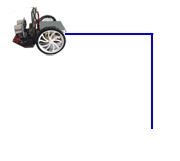
The robot should first drive forwards, then turn left and then drive forwards again for a short distance.
The lines of your programme are executed in sequence. The forward() command sets the robot to the ‘forward’ state. delay(2000) specifies the time in milliseconds until the microprocessor issues the next left() command. This sets the robot to the ‘turn left’ state. During the 550 milliseconds, the robot turns approx. 90° to the left. It then moves forwards again for 2000 milliseconds before it receives the stop() command.
We refrain from displaying the import line for the Maqueen Plus V2 in all programme examples. If you are working with this model, the import line is
from mbrobot_plusV2 import *
Example 2: Doing more than one thing at the same time
Although the following programme consists of a sequence of instructions that are executed one after the other, the robot can do several things at the same time. The robot moves forwards for 4 seconds and then backwards for 4 seconds. While travelling backwards, it switches the LEDs on and off.
The motors and the LEDs are controlled by the microprocessor, whereby the microprocessor can also operate several actuators simultaneously. While the motors are in the backward state after receiving the backward() command, the LEDs are switched on and off with the.
setLED(1)
switches on the LEDs and switches them off after 3000 ms with setLED(0).
After a further 1000 ms, the motors receive the stop() command and the robot stops.
With the Maqueen Plus, the LEDs can also light up in other colours (1:red, 2:green, 3:yellow, 4:blue, 5:pink, 6:cyan, 7:white)
Example 3: Travelling on an arc
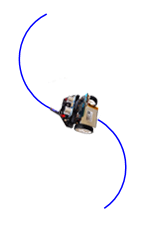
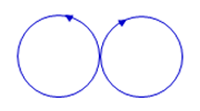
The robot should first travel on a left-hand arc for 5 seconds, then on a right-hand arc for 5 seconds and stop. Use the commands leftArc(r) or rightArc(r) for the arc, where the radius r is in metres.
You can change the speed with setSpeed(speed) You can select values between 0 and 100 as speed. The default speed is 50.
When programming robots, you have to think in terms of states. The forward() function sets the robot in a forward motion. While the motors are in this state, the microprocessor can issue commands to other actuators.
You can abort a running programme at any time by setting the small switch on the back of the robot chassis to ‘OFF’.
TO SOLVE BY YOURSELF
1.
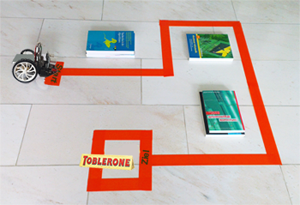
Create a course with some objects and write a programme so that the robot moves from the start to the finish.
2.
The robot should move along an arc to the left until it has travelled a complete circle. It should then move along a right-hand arc for the same length of time.
3.
An alarm is switched on with setAlarm(1) (a pip tone). setAlarm(0) switches the alarm off. The robot should first move forwards for 5000 ms and then backwards for 5000 ms. It should switch on the alarm while travelling backwards.
The programme opposite switches the alarm on for 3000 ms.
from mbrobot import *

setAlarm(1)
delay(3000)
setAlarm(0)
ADDITIONAL TOPICS
RGB LEDs (Maqueen Plus V2 and Maqueen Plus V3 only)
Example 4: Lighting up RGB LEDs in different colors
The Maqueen Plus V2 and Maqueen Plus V3 have four RGB LEDs on the underside of the robot. You can use the command setRGB(r, g, b) to light them up in different colors, where r is the red, g the green and b the blue color component. The command clearRGB() turns off all four LEDs.
In your program, the RGB LEDs first light up red, then green after 2000 milliseconds, followed by blue and violet. Finally, all four LEDs are turned off.
The commands forward(), left(), etc. control the entire drive system, which consists of two motors. However, you can also control each motor individually and adjust its speed. The command motL.rotate(speed)makes the left motor rotate forward at the specified speed. For positive values of speed, the motor rotates forward; for negative values, it rotates backward; and for speed = 0, the motor stops. The command motR.rotate(speed)works in the same way for the right motor.
Example 5: Controlling the left motor The left motor first rotates forward for 3 seconds at a speed of 50, then backward for 2 seconds at a speed of 30. Finally, it stops.
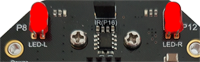
With the commands setLED(1) and setLED(0), you can switch both LEDs on and off simultaneously. If you look closely at your robot's circuit board, you will see that the left LED is labeled LED-L and the right LED is labeled LED-R. You can also control the LEDs individually.On the Maqueen Plus and Maqueen Plus V2, you can control the LEDs individually using the following commands: setLEDLeft(1) turns on the left LED setLEDLeft(0) turns off the left LED setLEDRight(1) turns on the right LED setLEDRight(0) turns off the right LED
Your program alternately turns one LED on and the other off..
Example 7: Switching on RGB LEDs individually (Maqueen Plus V2 and Plus V3 only)
With the command posRGB(id, r, g, b), you can light up individual RGB LEDs in different colors, where id is the LED number, r is the red, g the green and b the blue color component.
In your program, the first LED lights up red, the second green, the third blue and the fourth yellow. After that, all four LEDs are turned off. This sequence is repeated three times.
Make both motors rotate forward at the same speed for 4000 milliseconds.
5.
Make the left motor rotate forward and the right motor rotate backward for 4 seconds.
6.
How do you have to control the left and right motors so that the robot follows a left arc for 4 seconds?
7.
Extend Example 3 so that the left LED lights up when the robot follows a left arc. When the robot follows a right arc, the right LED should light up and the left LED should be turned off.
8.
Maqueen Plus V2 and V3 only.
Make the RGB LEDs light up in different colors while the robot is moving:
When moving forward, all LEDs should light up green.
When moving backward, all LEDs should light up red.
When turning left, the two left LEDs should light up yellow.
When turning right, the two right LEDs should light up violet.