| HomeTurtlegraficsGPanelRoboticsGameGrid WebTigerPython |
| Python - Online |
| Deutsch English |
1. THE GAME WINDOW

YOU LEARN HERE... |

how to create a game window using the GameGrid class. All characters and objects appear in the game window. |
EXAMPLES |
The game window is structured as a grid and consists of a certain number of square cells. The cell size and the number of cells in the horizontal and vertical directions can be freely selected. Larger cells are suitable for certain applications (grid games), while other applications benefit from using cells that are only 1 pixel in size (pixel games). The cell coordinates are used for positioning within the graphics window. The size and appearance of the game window is determined by selecting the parameters when creating the game window. In the first example, the parameters (number of horizontal cells, number of vertical cells, cell size and colour of the grid lines) are used.
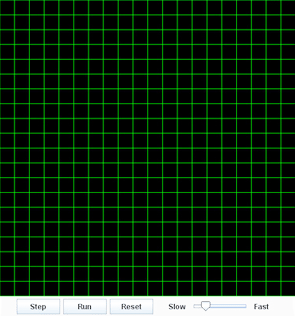
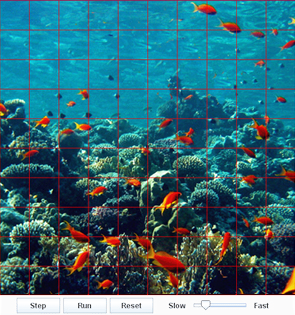
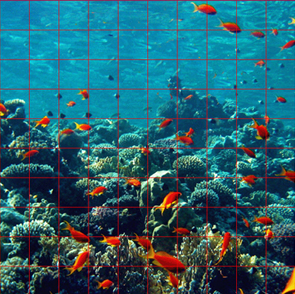
Program: # Gg1.py from gamegrid import * makeGameGrid(10, 10, 60, Color.red) # makeGameGrid(20, 20, 20, Color.green) # makeGameGrid(10, 10, 60, Color.red, "sprites/reef.gif") # makeGameGrid(10, 10, 60, Color.red, "sprites/reef.gif", False) # makeGameGrid(600, 600, 1, None, "sprites/town.jpg", False) show() Click on the ‘WebTigerPython’ button to insert the programme into the WTP editor. Start the programme with the green start arrow. You can stop the programme execution with the red stop button. |
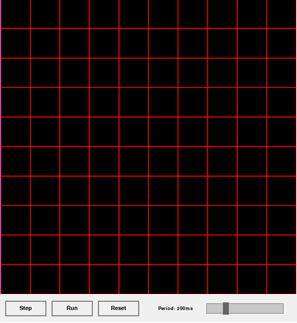
makeGameGrid() can have additional parameters. By activating the commented-out lines in the programme code, you can create additional game windows:
All background images used in our learning environment are included in the WebTigerPython distribution. The size of the background image must match the size of the game window. The background images in our examples are mostly 601x601 pixels in size. You can find an overview of the images available in the distribution in the documentation under the link Image Library. |

REMEMBER YOU... |
The size and appearance of the window is determined by the choice of parameters in the makeGameGrid() command. makeGameGrid(nbHorzCells, nbVertCells, cellSize, color) creates a game window without grid lines, with a background image and without a navigation bar. makeGameGrid(nbHorzCells, nbVertCells, cellSize, None, bgImage, False) creates a game window without grid lines, with a background image and without a navigation bar. |
TO SOLVE BY YOURSELF |
|
 |
 |