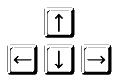
how to use the keyboard to control the game characters.
In so-called callback functions, you define what should happen when a key on the keyboard is pressed or released. These functions are not called by the programme, but automatically by the system when a key is pressed. The callback functions are registered with the named parameters keyPressed or keyReleased in makeGamegrid() . You can use the getKeyCode() function to determine the numerical code of the pressed key.
EXAMPLES
Example1: Controlling Pacman with the cursor keys
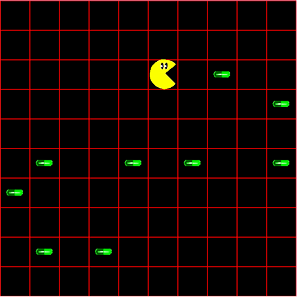
Pacman can be moved with the UP, DOWN, LEFT and RIGHT cursor keys. The aim is to swallow all the pills as quickly as possible.
You can use the Pacman and Pill classes from the previous example.
The callback function keyCallback(e) defines what should happen when a cursor key is pressed. The callback function receives the parameter e, from which you can determine the code of the pressed key with getKeyCode(). For the cursor keys, these are the number codes 37, 38, 39 and 40.
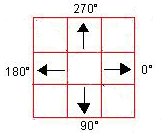
Depending on which cursor key was pressed, Pacman moves to one of the four adjacent cells. The direction can be set using the setDirection() method. With setDirection(270) Pacman moves north.
Program:
# Gg6.pyfrom gamegrid import *
# --------------------- class Pacman ---------------------classPacman(Actor):
def __init__(self):
Actor.__init__(self, True, "sprites/pacman.gif", 2);
def tryToEat(self):
self.show(0)
actor = getOneActorAt(self.getLocation(), Pill);
if (actor != None):
actor.hide()
self.show(1)
# --------------------- class Pill ---------------------classPill(Actor):
def __init__(self):
Actor.__init__(self, "sprites/pill_0.gif");
def keyCallback(e):
keyCode = e.getKeyCode()if keyCode == 37: # left
paki.setDirection(180)
elif keyCode == 38: # up
paki.setDirection(270)elif keyCode == 39: # right
paki.setDirection(0)
elif keyCode == 40: # down
paki.setDirection(90)
paki.move()
paki.tryToEat()
makeGameGrid(10, 10, 60, Color.red, False, keyPressed = keyCallback)
paki = Pacman()
addActor(paki, Location(0,0))
for i in range(10):
addActor(Pill(), getRandomEmptyLocation())
show()
doRun()
The callback function keyCallback(e) is called by the system when a key is pressed. It is registered with the parameter keyPressed in makeGamegrid(). You can use getKeyCode() to determine the code of the key that was pressed. For the cursor keys, the number codes are 37, 38, 39 and 40.
TO SOLVE BY YOURSELF
1.
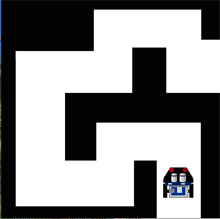
Create a game window with 20 horizontal and 20 vertical cells, size 25 pixels, without grid lines, with the background image ‘sprites/bg2.gif’). Since the robot track has a transparent background, you must also use setBgColor(Color.white) to make the game window background white. For the robot, use the image "sprites/mbrobot.gif".
The Acror Robot with the sprite image mbrobot.gif is controlled with the cursor keys forward, backward, left and right and should drive through the course.
To ensure that the sprite image always rotates in the direction of movement, you must use True before assigning the sprite.. Actor.__init__(self, True, "sprites/mbrobot.gif").
2.
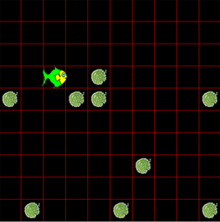
Create an animated Actor Fish() with the sprites fish_0.gif and fish_1.gif and an Actor Alga() with the sprite alga.gif. Twenty algae are generated at randomly selected positions in the game window. The fish is controlled with the cursor keys Left, Right, Up and Down until it has eaten all the algae..