| Deutsch English |
YOU LEARN HERE... |
how you can capture the actors precisely with the mouse. Unlike pressCallback() in the previous chapter, which captures the entire cell of the mouse click, the methods of GGMouseListener give you the pixel coordinates of the mouse click. The mouseTouched() method of the GGMouseTouchListener has several parameters: The GGMouseTouchListener is registered with the actor using addMouseTouchListener(). |
EXAMPLES |
| Example 1: Removing matches |
|
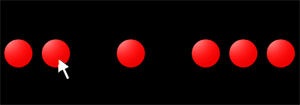
The matches are not arranged in a grid, but are placed arbitrarily close to each other. It is not the grid cells, but the sprite images that define the area active for mouse clicks. With match.addMouseTouchListener MouseTouched, GGMouse.lPress), the TouchListener is registered for each match and reacts when the left mouse button is pressed. In the mouseTouched() function, you specify what should happen when the mouse clicks on the actor.
Program: # Gg9.py from gamegrid import * def mouseTouched(actor, mouse, spot): actor.removeSelf() makeGameGrid(600, 120, 1, False) nbMatches = 20 for i in range(nbMatches): match = Actor("sprites/match.gif") addActor(match, Location (12 + 30 * i, 60)) match.addMouseTouchListener(mouseTouched, GGMouse.lPress) show() doRun() Example 2: Move a car with the mouse button pressed.
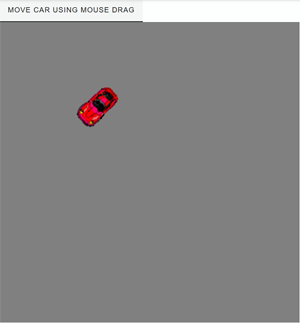
To ensure that the car always turns in the direction of movement, the direction of movement is continuously calculated from the difference difference between the old and new coordinates. The program always waits until the distance between the old and new points is greater than 5 pixesl. Program: # Gg9a.py from gamegrid import * import math # --------------------- class car -------------------------- class Car(Actor, GGMouseListener): def __init__(self): Actor.__init__(self, True, "sprites/redcar.gif") self.oldLocation = Location() def mouseEvent(self, e): location = toLocationInGrid(e.getX(), e.getY()) self.setLocation(location) dx = location.x - self.oldLocation.x; dy = location.y - self.oldLocation.y; if dx * dx + dy * dy < 25: return True phi = math.atan2(dy, dx) self.setDirection(math.degrees(phi)) self.oldLocation = location # --------------------- main --------------------------------- makeGameGrid(600, 600, 1, False) setTitle("Move car using mouse drag") setSimulationPeriod(50) setBgColor(Color.gray) car = Car() addActor(car, Location(50, 50)) addMouseListener(car, GGMouse.lDrag) show() doRun() |
REMEMBER YOU... |
| With the help of GGMouseTouchListener, you can obtain the pixel coordinates of the mouse click and capture the actors precisely by clicking on the sprite image. Moving the actors with the mouse button pressed down is a continuous process. |
TO SOLVE BY YOURSELF |
|
 |
 |
 |