how the game characters can change their appearance during movement. The user must have the impression that the game characters are eating, running, swimming, etc. To make this as easy as possible, you can assign several sprites to an actor, only one of which is visible at a time. The number of sprites is specified as a parameter when the actor is created. The individual sprites must be saved with an index number.
EXAMPLES
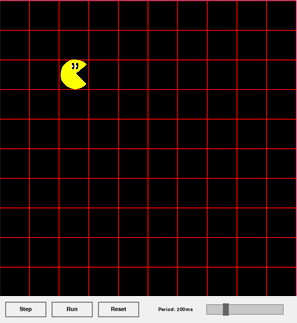
Example 1: Pacman opens and closes his mouth with every step
Two sprites pacman_0.gif and pacman_1.gif are assigned to the actor pacman and are visible alternately.
pacman_0.gif
pacman_1.gif
showNextSpritedisplays the next available image. Since there are only two sprites, the two sprites are displayed alternately.
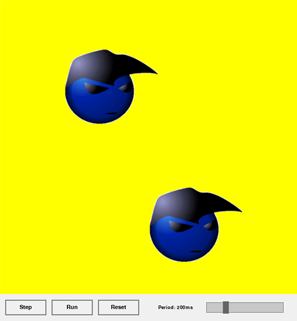
Three different spriteshead_0.png, head_1.png and head_2.png , are assigned to the Actor Head and are displayed periodically in sequence. A GameGrid with a cell size of 1 pixel is used to achieve smooth character movements.
getX() returns the current coordinates of the centre of the image. With a window size of 600x600 pixels, the actor must reverse at 500 on the right and 95 on the left.
Program:
# Gg4a.pyfrom gamegrid import *
# ------------- class Head ---------------------------classHead(Actor):
def __init__(self):
Actor.__init__(self, "sprites/head.png", 3)def act(self):
self.move()
self.showNextSprite()
if (self.getX() > 500) or (self.getX() < 95):
self.turn(180)
# ---------- main ----------------------------
makeGameGrid(600, 600, 1, Color.yellow)
addActor(Head(), Location(135, 180))
addActor(Head(), Location(300, 450))
show()
doRun()
To animate an actor during movement, you can assign several sprites to it, which are visible alternately. You specify the number of sprites as a parameter when creating the actor. With showNextSprite(), the images are displayed in sequence; after the last image, the first image appears again.
TO SOLVE BY YOURSELF
1.
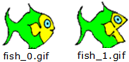
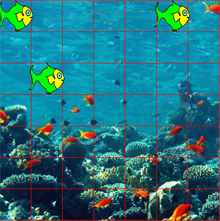
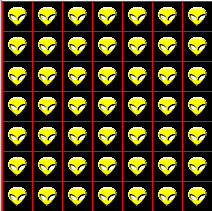
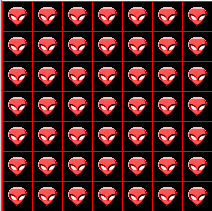
Two sprites, fish_0.gif and fish_1.gif, are assigned to the actor Fish().
In the game window with the background image reef.gif, create three animated Fish actors at positions (0, 0), (5, 0) and 1, 2) and have them move from cell to cell as in example 1. Here you can see the advantage of object-oriented programming: once you have defined an actor with its movement and animation, you can create as many of them as you like.
2.
Two sprites, creature_0.gif
creature_1.gif ,
are assigned to the actor Creature(). In the act() method, the actor should only change its sprite image.
Create an actor in each cell of a playing field with 8 horizontal and 8 vertical cells, each measuring 50. To do this, use two for loops:
for y in range(8):
    for x in range(8):
        addActor(Creature(), Location(x, y))